

 Ember Fasting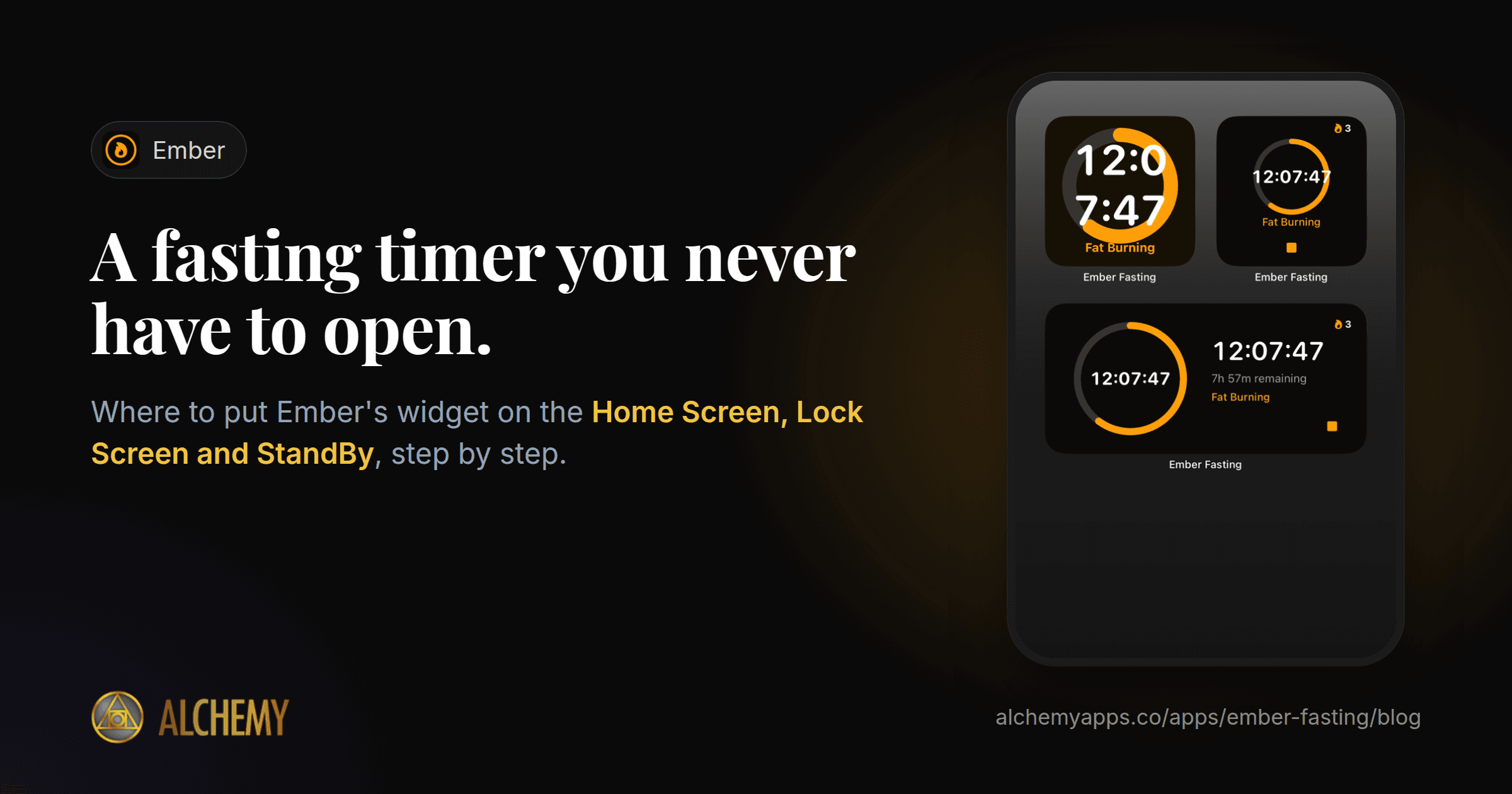
The hardest moment in a fast is rarely hour 16. It is the moment you open your phone to check how long you have left, and the next thing you know you are scrolling.
A widget fixes that. You see where you are in your fast without opening anything. Here is a setup that works, and how to build it.
The setup
- Lock Screen: the elapsed time, so a glance at your phone answers the question.
- Home Screen: a larger timer, near where your thumb lands.
- StandBy: a bedside clock that also shows your fast, if you charge your phone on its side at night.
You do not need all three. The Lock Screen one does the most work.
Lock Screen widget
- With your iPhone unlocked, touch and hold the Lock Screen until the customise view appears.
- Tap Customize, then choose the Lock Screen.
- Tap the widget area below the clock.
- Find Ember in the list and tap the widget you want.
- Tap Done.
The Lock Screen is the best place for a fasting timer because you see it every time you pick up your phone, without unlocking it.
Home Screen widget
- Touch and hold an empty area of the Home Screen until the apps jiggle.
- Tap Edit, then Add Widget.
- Search for Ember and swipe through the sizes.
- Tap Add Widget, drag it into place, and tap Done.
Where to put it: on your first Home Screen page, away from the apps you open on autopilot. If it sits next to a social app, you will see the app first.
StandBy
StandBy turns your iPhone into a bedside display while it charges.
- Open Settings, then StandBy, and make sure it is on.
- Charge your iPhone on its side, locked and still.
- Swipe left to the widget view, then touch and hold to add Ember.
This is useful for evening fasts: the last thing you see at night and the first thing in the morning is how far you are.
Which Ember widgets are free
The full fasting timer is free in Ember, with no trial and no account, and that includes a glanceable widget with a timer ring and your elapsed time.
Ember Pro adds more widget styles, including an interactive widget that starts and stops a fast from your Home Screen without opening the app. Pro also adds live metabolic tracking, extra themes and icons, for $1.99 a month, $14.99 a year or $29.99 once.
Small habits that make widgets work
- Start the fast at the same time each day. A widget is most useful when the number it shows means the same thing every day.
- Turn off the notifications you do not need. With a widget showing your progress, you may only need the "fast complete" alert.
- Use the same schedule for two weeks before changing it. If you have not picked one yet, read 16:8, 18:6, 20:4 or OMAD: how to choose.
Get Ember: the free fasting timer with widgets for the Home Screen, Lock Screen and StandBy.