

 Longitude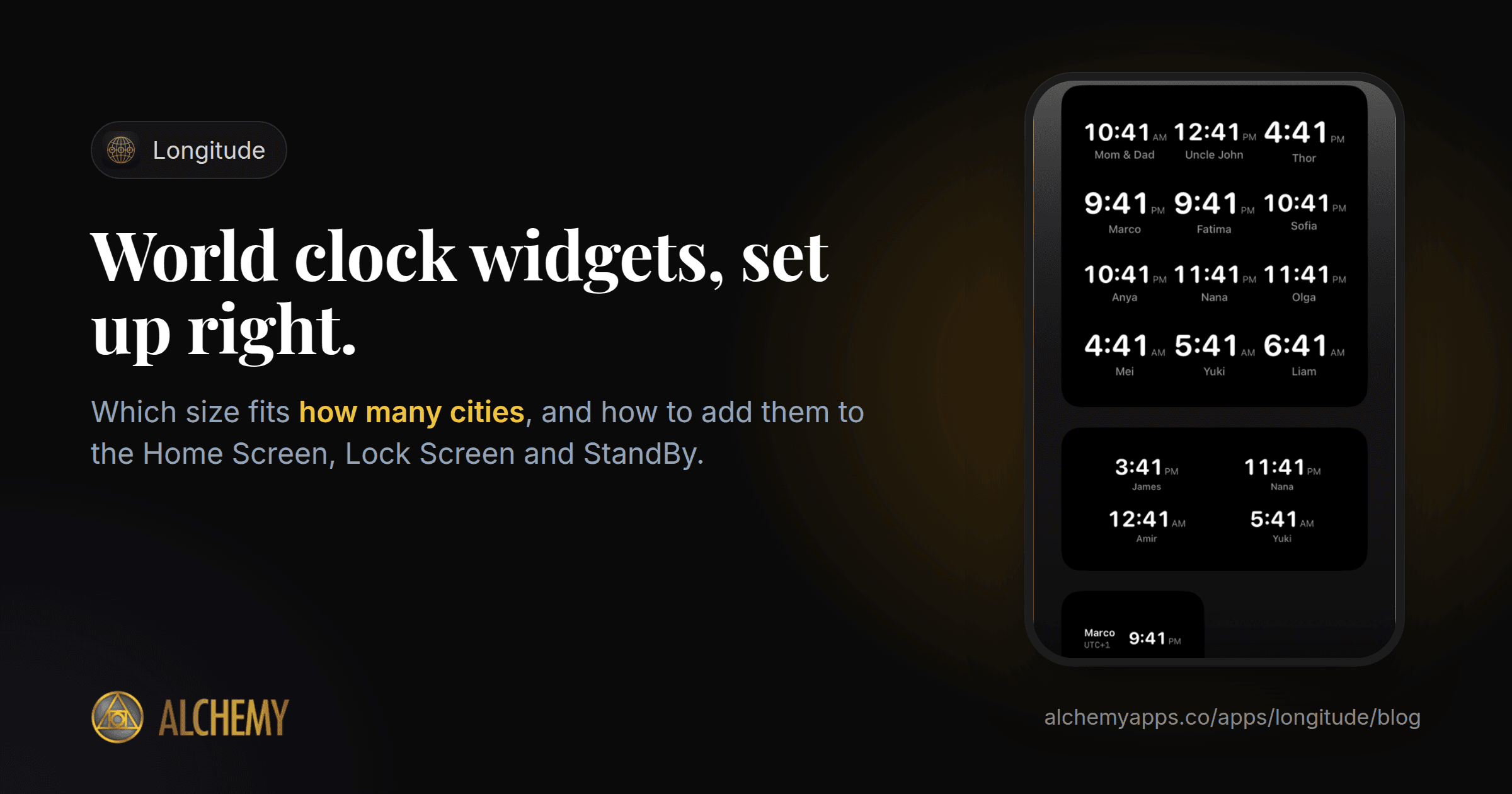
If you work with people in other cities, or have family far away, you check the time somewhere else many times a day. A world clock widget puts that answer on the screen you already look at.
Here is how to set one up in each place iPhone allows, and which size to choose.
Choose your clocks first
Before adding any widget, decide which cities matter. Two to four is the sweet spot for a glance. More than that and you start reading instead of glancing.
A good rule: include the cities you schedule with every week, and leave the rest in the app.
Home Screen widget
- Touch and hold an empty area of the Home Screen until the apps jiggle.
- Tap Edit, then Add Widget.
- Search for your world clock app and swipe through the sizes.
- Tap Add Widget and drag it into place.
- To choose which clocks it shows, touch and hold the widget, then tap Edit Widget.
Which size:
- Small: one or two cities. Best when you have one other city that matters.
- Medium: two to four cities. The best fit for most teams.
- Large: a whole wall of clocks, for people who work across many time zones.
Lock Screen widget
- Unlock your iPhone, then touch and hold the Lock Screen.
- Tap Customize, then choose the Lock Screen.
- Tap the widget area below the time and add your world clock.
- Tap Done.
Lock Screen widgets are small, so pick your single most important city.
StandBy
If you charge your iPhone on its side, StandBy can show a clock for another city at your bedside.
- Open Settings, then StandBy, and turn it on.
- Charge your iPhone on its side, locked and still.
- Swipe left to the widget view, touch and hold, and add your world clock.
Useful if you have early calls with Europe or late ones with Asia: you can see whether it is a reasonable hour there before you pick up the phone.
Name your clocks
Most world clock apps label each clock with the city. That is fine until you have two colleagues in different parts of the same country, or you cannot remember whether your client is in Sydney or Perth.
Name the clock after the person or team instead: "Dev team, Tokyo", "Mum, Lagos", "Client, Denver". A glance then tells you not just the time but whose time it is.
Doing this with Longitude
Longitude is built around widgets. Every size works on the free version: Small (1 to 2 clocks), Medium (2 to 4) and Large (up to 12), plus Lock Screen and StandBy. You can name every clock, colour-code it, and group clocks by team, trip or family. Clocks sync across your devices through iCloud, with no account.
The free version includes 5 clocks and the Digital and Analog faces. Pro adds unlimited clocks, all 10 clock faces, the World Map and the Overlap Finder for up to 6 time zones, after a 7-day free trial.
When your cities change their clocks for daylight saving on different dates, read when your cross-time-zone meetings move.